
Your desktop background is the first thing you see every time you turn on your PC, so it should actually look like your PC. If you’re wondering how to change desktop wallpaper in Windows 11, the good news is that Microsoft has made the process quick and beginner-friendly.
In this beginner-friendly tutorial, you’ll learn every way to change your wallpaper in Windows 11. Whether you want to use a favourite photo, a beautiful landscape, or a solid color, Windows 11 lets you change your desktop background in just a few clicks.
Quick Answer: How to Change Your Wallpaper in Windows 11
Right-click any empty space on your desktop.
- Select Personalize.
- Click Background.
- Choose Picture, Solid color, or Slideshow from the dropdown.
- Pick your image (or click Browse photos to use your own).
That’s the short version. Now let’s walk through it in detail, with screenshots, on how to change your wallpaper in Windows 11, along with a few extra options most tutorials skip.
The last method in this tutorial is the fastest method to set a wallpaper in Windows 11.
Just starting out with computers? You’re in the right place! This tutorial is part of our Computer Fundamentals series, designed to help beginners understand essential concepts in a simple way.
Method 1: Change Desktop Background from the Right-Click Menu
This is one of the fastest ways to change your wallpaper, and it works whether you’re setting a Windows default image or one of your own photos.
Step 1: Open Personalize from the Right-Click Menu
Right-click your desktop. Click any empty area of your desktop (avoid clicking on icons) and select Personalize from the menu that appears.
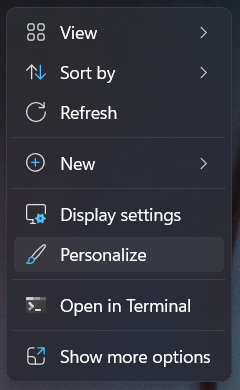
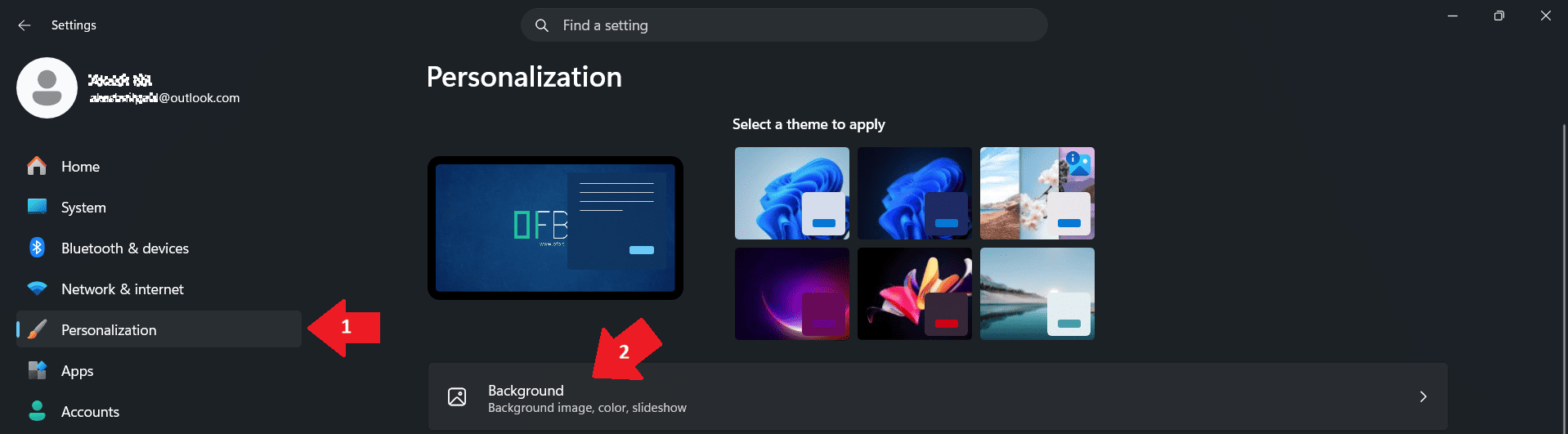
Step 2: Open the Background settings.
In the Personalization window, click Background. This opens the section where all your wallpaper options live.
Step 3: Choose Personalize your background.
Next to Personalize your background, you’ll see a dropdown menu with three options:
- Picture – A single static image. This is the most common choice.
- Solid color – A flat, distraction-free color instead of an image.
- Slideshow – Automatically rotates through a folder of images.
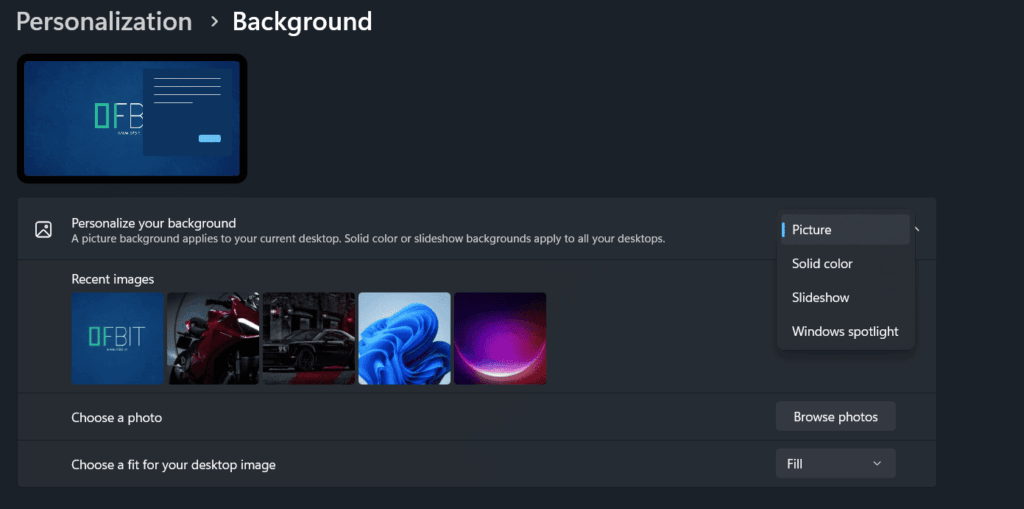
Select Picture if you just want a straightforward wallpaper change.
Step 4: Pick an image to set as Wallpaper.
Windows shows a handful of built-in wallpapers. To use your own photo instead, click Browse photos, navigate to the image on your computer, and select it. Your new wallpaper applies instantly – you don’t need to click “Save” or restart anything.
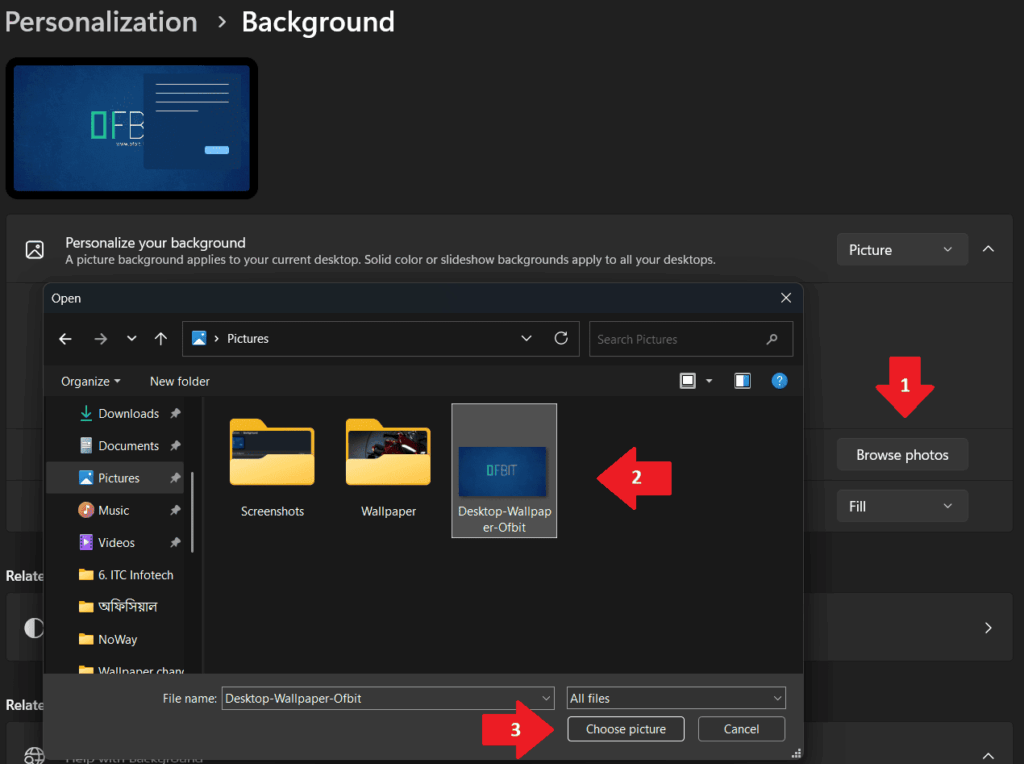
Step 5: Adjust how the image fits your screen (optional).
Right below the image selector, you’ll find a Choose a fit for your desktop image dropdown with options like Fill, Fit, Stretch, Tile, Center, and Span. If your picture looks stretched or cropped oddly, try switching this setting until it looks right – Fill works best for most standard photos.
Method 2: Change Desktop Background from Windows Settings
This is another commonly used method to change the desktop background in Windows 11.
Step 1: Open Settings
Click the Start button. Then select Settings. Alternatively, press Windows key + I on your keyboard to open Settings.
Step 2: Open Personalization
From the left navigation pane, click Personalization.
Step 3: Select Background
Click Background.
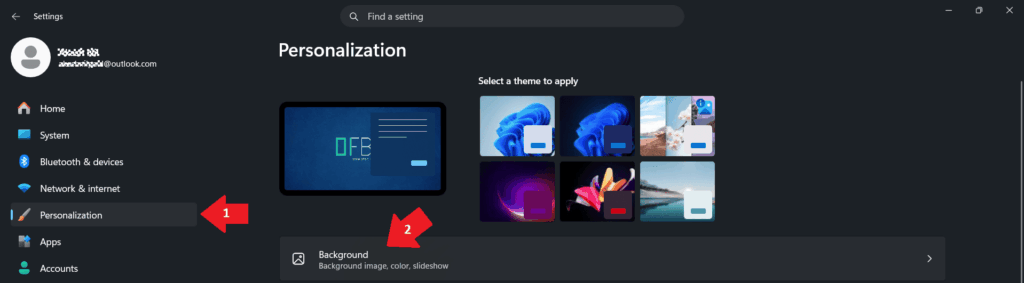
Here you’ll find all wallpaper customisation options.
Step 4: Choose Your Background Type
Under Personalize your background, you’ll see same three options:
- Picture
- Solid Color
- Slideshow
Follow the same steps from Method 1 to choose your Picture, Solid color, or Slideshow.
Both methods lead to the exact same screen, so use whichever feels more convenient.
Now, next is the easiest and fastest way to change your wallpaper in Windows 11 and set your favourite picture as your desktop background.
Method 3: Set a Photo as Wallpaper Directly from File Explorer
Already have the perfect photo saved on your computer? This is the easiest and fastest method – you can skip Settings entirely.
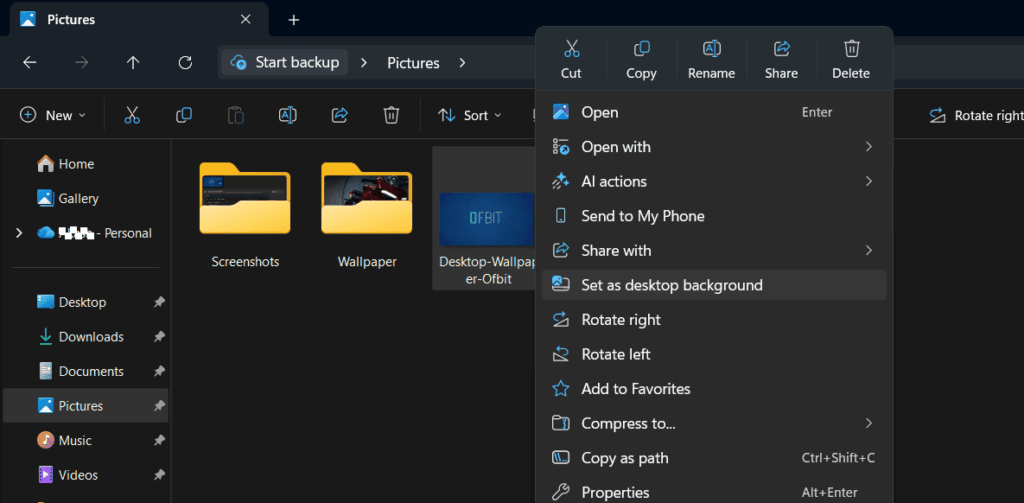
Open File Explorer and locate the image.
Right-click the image file.
Select Set as desktop background.
Bonus: Set a Slideshow as Your Desktop Background
So far, you’ve learned how to set a single picture as your wallpaper. But if you enjoy variety, Windows 11 can rotate your wallpaper automatically. A slideshow cycles through a folder of your choice at whatever interval you set.
Like other methods, go to Settings > Personalization > Background.
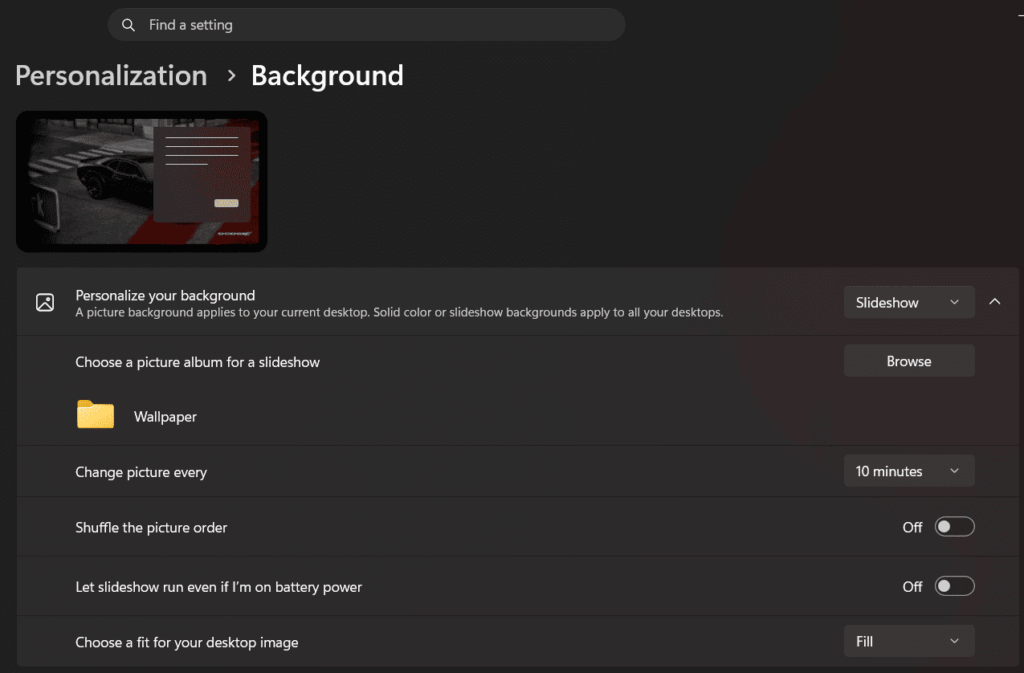
In the Personalize your background dropdown, this time select Slideshow.
Click Browse and choose a folder containing the images you want to cycle through.
Set Change picture every to your preferred interval – anywhere from 1 minute to 1 day.
Toggle Shuffle on if you want the images to play in random order.
Eco-Tip: Fix Slideshows Not Working on Battery
If you’re on a laptop, note that Windows pauses slideshows on battery power by default to save energy. You can turn on Let slideshow run even if I’m on battery power, but keep in mind it will use slightly more battery.
Bonus: Use a Solid Color as Your Desktop Background
If you prefer a clean, distraction-free desktop:
- First Step: Open Settings.
- Then, go to Personalization.
- Select Background.
- Choose Solid Color.
- Pick one of the available colors.
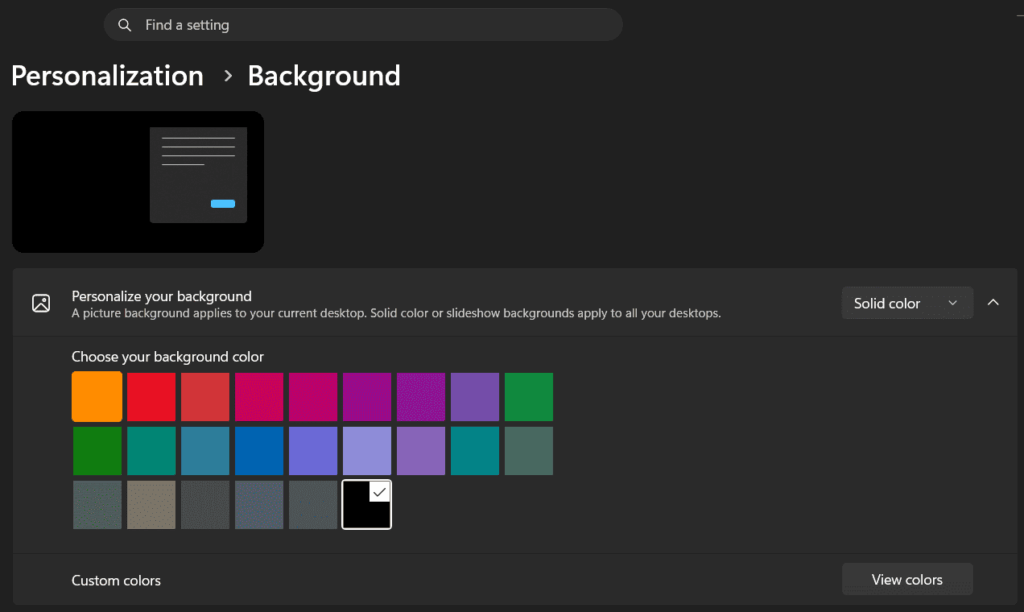
Windows immediately changes the desktop background.
Bonus: How to Adjust Wallpaper Fit
Not every image matches your monitor’s resolution. Windows 11 provides several display options.
Under Choose a fit for your desktop image, select one of the following:
- Fill: Enlarges the image to cover the screen completely.
- Fit: Fits the entire image while maintaining its aspect ratio.
- Stretch: Stretches the image to fill the display, which may distort it.
- Tile: Repeats smaller images across the desktop.
- Center: Displays the image in the center without resizing.
- Span: Spans one image across multiple monitors.
For most users, Fill provides the best appearance.
Troubleshooting: Wallpaper Won’t Change or Keeps Resetting
If your new wallpaper isn’t sticking, try these quick fixes:
Restart Your Computer: A simple restart can resolve temporary issues affecting personalization settings.
Check Activation Status: Some personalization features are limited if Windows isn’t activated. Go to: Settings → System → Activation. Verify that Windows is activated.
Re-select the image: If a slideshow keeps reverting to default pictures, reopen the Background settings and re-browse to your folder.
Restart File Explorer: Open Task Manager (Ctrl+Shift+Esc), find Windows Explorer in the list, right-click it, and select Restart.
Frequently Asked Questions
Why is my Windows desktop slideshow not changing?
If you are using a laptop, Windows automatically pauses background slideshows on battery power to conserve energy. To bypass this, navigate to Settings > Personalization > Background and enable “Let slideshow run even if I’m on battery power.”
How do I change my wallpaper on Windows 11 without using Settings?
Right-click any image file in File Explorer and choose Set as desktop background – no need to open Settings at all.
How do I change my desktop wallpaper in Windows 11?
Open Settings → Personalization → Background, then choose a picture, solid color, or slideshow.
Can I use my own photo as a wallpaper?
Yes. Click Browse Photos, select your image, and choose Choose Picture.
Can I use different wallpapers on each monitor?
Yes. With a Picture background, right-click the image thumbnail in the Background settings and choose which monitor it applies to.
Why is my desktop background black instead of my picture?
Your Background setting is likely set to Solid color instead of Picture. Go to Settings > Personalization > Background and switch it back.
Does changing my wallpaper slow down my PC?
No. A single picture or slideshow has no noticeable effect on performance, even on older hardware.
What image format works best?
Windows 11 supports JPG, JPEG, PNG, and BMP. PNG and high-quality JPG images typically provide the best results.
Wrapping Up – How to Change Desktop Wallpaper in Windows 11 (Step-by-Step with Screenshots)
Learning how to change the desktop wallpaper in Windows 11 is a simple way to personalize your computer and make it feel uniquely yours. Whether you prefer a favourite photo, a vibrant landscape, a minimalist solid color, or a rotating slideshow, Windows 11 provides flexible options to customise your desktop in just a few clicks.
By following the methods in this guide, you can quickly change your desktop background, adjust how it fits your screen, and resolve common issues if the wallpaper won’t update. As you become more comfortable with Windows 11, you can explore additional personalization features such as themes, lock screen images, colors, and desktop icons to create a workspace that suits your style.
Stay Connected & Keep Learning!
Did you find our articles and tutorials helpful? Stay updated with more expert tips – Follow us on Facebook and Instagram!
Be Part of a Global Tech Network! Join our Official Facebook Group for live Q&A, discussions, and networking with a global tech community!