

The Excel IF Function is one of the most powerful tools in Microsoft Excel. It helps you make decisions inside your spreadsheet. Instead of manually checking conditions, Excel does it for you – instantly and accurately.
In this tutorial, you will learn the IF Function in Excel from scratch. We will move step by step from basic usage to advanced logic, using real-life examples and practice datasets.
IF Function
The IF Function in Excel checks whether a condition is true or false. Then, it returns a result based on that condition.
IF Function Syntax
=IF(logical_test, value_if_true, value_if_false)Understanding the Arguments of the Excel IF Function
When you use the Excel IF Function, you always work with three important parts:
=IF(logical_test, value_if_true, value_if_false)Let’s break down what each of these means in simple terms.
logical_test (The Condition)
This is the question you are asking Excel. It checks whether something is TRUE or FALSE.
Examples:
A2 > 50 → Is the value greater than 50?
B2 = “IT” → Is the department IT?
C2 <= 10000 → Is the value less than or equal to 10,000?
Think of it this way: Is this condition true for the value you select?
value_if_true (If Condition is TRUE)
This is the result Excel will return if the condition is satisfied.
Examples: “Pass”, “Approved” or whatever value you want to return.
Meaning: If the selected cell value meets the condition, then show this.
value_if_false (If Condition is FALSE)
This is the result Excel will return if the condition is NOT satisfied.
Examples: “Fail”, “Rejected” or whatever value you want to return.
Meaning: If the selected cell value does not meet the condition, then show this.
Understanding the Arguments of the Excel IF Function with a Real Example
Now, let’s understand each part using a real example:
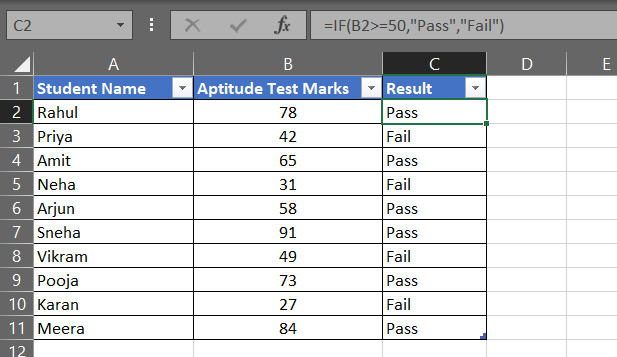
=IF(B2>=50, "Pass", "Fail")logical_test → B2 >=50 → Is the value greater than or equal to 50?
value_if_true → “Pass” → If B2 is equal to or greater than 50, the condition is satisfied, return Pass.
value_if_false → “Fail” → If B2 is not equal to or less than 50, the condition is NOT satisfied, return Fail.
Note: Text values in Excel formulas must be enclosed in double quotes ” “.
IF Function – Stepping Up the Complexity
Now that you understand the basics of the Excel IF Function, let’s move beyond simple Pass/Fail examples and use IF formulas in a real business scenario.
In many companies, Excel is used to:
- Track employee performance
- Check whether sales targets are achieved
- Automatically calculate incentives and bonuses
Instead of manually calculating everything, the IF Function in Excel can make decisions automatically based on conditions.
Example of Employee Sales Performance Report
| Employee Name | Sales Amount | Target Status | Incentive |
|---|---|---|---|
| Rahul | 120000 | ||
| Priya | 85000 | ||
| Amit | 250000 | ||
| Neha | 65000 | ||
| Arjun | 175000 |
Step 1: Check Whether the Sales Target is Achieved
Condition:
If sales are 100000 or more → display “Achieved”
Otherwise → display “Not Achieved”
Formula:
=IF(B2>=100000,"Achieved","Not Achieved")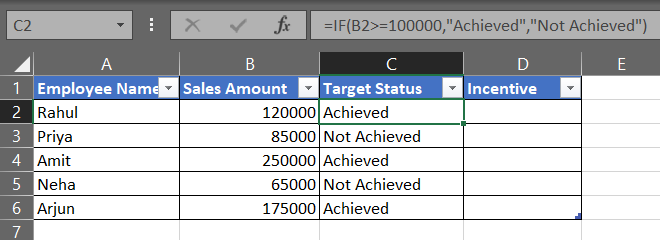
Step 2: Calculate Employee Incentive
Condition:
If sales are greater than 150000 → give 15% incentive
Otherwise → no incentive
Formula:
=IF(B2>150000,B2*15%,0)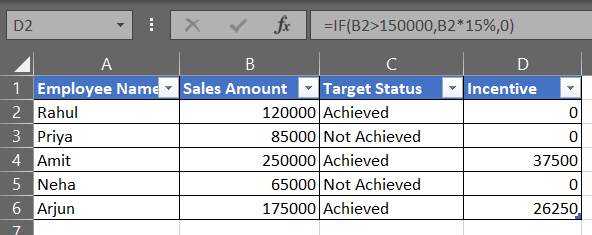
Understanding the IF Formula
In this formula:
=IF(B2>150000,B2*15%,0)Excel checks conditions one by one:
First, is the sales amount greater than 150000?
Yes → calculate 15% incentive
No → return 0
Why This Excel IF Function Example Matters
This type of IF formula is commonly used in:
Sales incentive systems
Payroll calculations
Employee performance tracking
Business dashboards
HR reports
Wrapping Up – IF Function in Excel
The Excel IF Function is the foundation of logical decision-making in Excel. Once you master it, you can automate reports, reduce manual work, and build smart spreadsheets for real-world business scenarios.
However, this is just the beginning.
In the next tutorials, you will learn how to make IF formulas even more powerful using:
AND Function
OR Function
Nested IF
IFS Function
IFERROR
COUNTIF
SUMIF
VLOOKUP with IF
INDEX MATCH with IF
Once combined, these formulas can build powerful dashboards, automated reports, and advanced business logic systems in Excel.
Stay Connected & Keep Learning!
Did you find our articles and tutorials helpful? Stay updated with more expert tips—Follow us on Facebook and Instagram!
Be Part of a Global Tech Network! Join our Official Facebook Group for live Q&A, discussions, and networking with a global tech community!