
Where do I write HTML code? Well, all you need is a simple HTML Editor.
To learn HTML, you do not need any expensive software to begin with. A Free HTML Editor, which comes with Windows, is more than enough to start learning HTML. And it is Notepad, a free text editor from Windows.
What is an HTML Editor?
An HTML Editor is a text editor or code editor software that allows you to create and manage HTML files.
In simple words, if HTML is the language of a webpage, then the HTML Editor is the place where you write that language.
A Free HTML Editor can be as simple as Notepad or as advanced as Visual Studio Code.
Popular HTML Editors
There are many HTML editors available today. Some popular options are:
Notepad → free with Windows
Notepad++ → free lightweight editor
VS Code → advanced free HTML editor
Sublime Text → fast and clean editor
Online HTML Editors → browser-based coding tools
Even though these are excellent tools, Notepad is the best starting point for learning the basics. As your first free HTML editor, it helps beginners learn faster because they must understand the code manually first.
For absolute beginners, starting with Notepad is one of the best ways to understand raw HTML code because it helps you focus on the syntax instead of depending on smart suggestions.
Why Notepad is the Best Free HTML Editor for Beginners
Notepad is the simplest Free HTML Editor for Windows users. It is perfect for beginners because:
- Already installed in Windows.
- No setup required.
- Distraction-free.
- Helps you learn HTML syntax manually.
- Great for understanding tags and structure.
Most importantly, Notepad teaches you where every opening and closing tag goes, because it does not provide smart suggestions; everything is manual. Thus, it builds a strong foundation before you move to professional editors.
If you are using a Mac, you can use TextEdit, which is like Notepad in Windows, but you must configure it to work with plain text rather than rich text, which is its default setting.
How to Use Notepad as an HTML Editor
To use Notepad as an HTML Editor, follow these simple steps:
Step 1: Open Notepad
Click on the Start button or Search button and type Notepad.
Notepad opens instantly because it is already part of Windows. Click on the search result to open Notepad.
Step 2: Write Your HTML Code
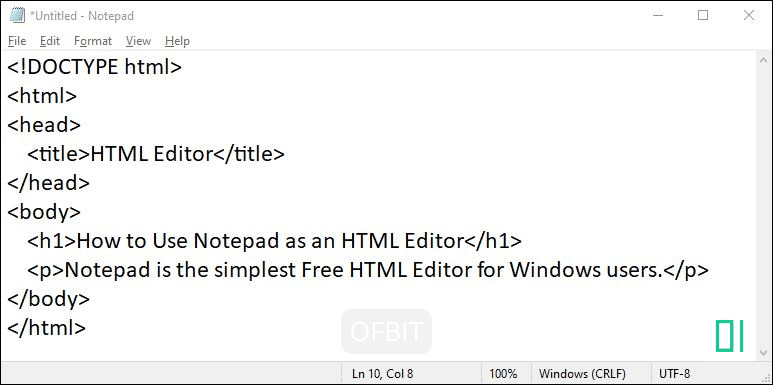
Now type this sample code:
<!DOCTYPE html>
<html>
<head>
    <title>HTML Editor</title>
</head>
<body>
    <h1>How to Use Notepad as an HTML Editor</h1>
    <p>Notepad is the simplest Free HTML Editor for Windows users.</p>
</body>
</html>
This simple example helps you understand how an HTML Editor stores webpage structure.
Step 3: How to Save HTML File
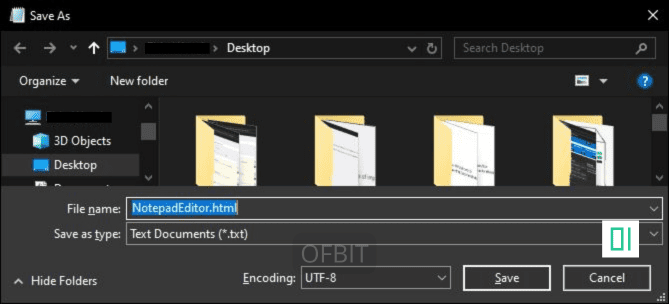
Saving HTML files correctly is very important.
Select the File Tab and then from the drop-down menu, click Save As.
Next, name your file with a .html extension. For example, NotepadEditor.html. Ensure the encoding is set to UTF-8, which is the standard and preferred format.
Step 4: Open the File in the browser
Now go to the saved file location and double-click the file.
It will open in your browser and display the webpage.
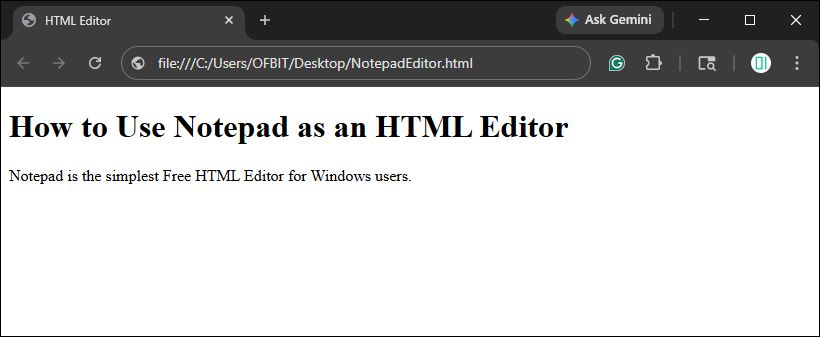
This is how your HTML Editor code becomes a real webpage.
But wait!!
How do I open the same HTML file again to edit it?
Step 5: Edit the HTML File Again
If you want to modify the same HTML file later, go to the saved file location. Then:
Right-click the file → Open with → Notepad
This will open the HTML code inside Notepad instead of the browser, allowing you to make changes easily.
After editing, simply press:
Ctrl + S
This will save the file again, then refresh the browser page to see the updated output.
Wrapping Up – HTML Editor
In this HTML Editor tutorial, you learned: What an HTML Editor is. Why Notepad is the best beginner choice. How to use Notepad as a Free HTML Editor, How to save and run HTML files? When to move to advanced editors
Stay Connected & Keep Learning!
Did you find our articles and tutorials helpful? Stay updated with more expert tips—Follow us on Facebook and Instagram!
Be Part of a Global Tech Network! Join our Official Facebook Group for live Q&A, discussions, and networking with a global tech community!
Pingback: HTML Introduction - Ofbit.Org